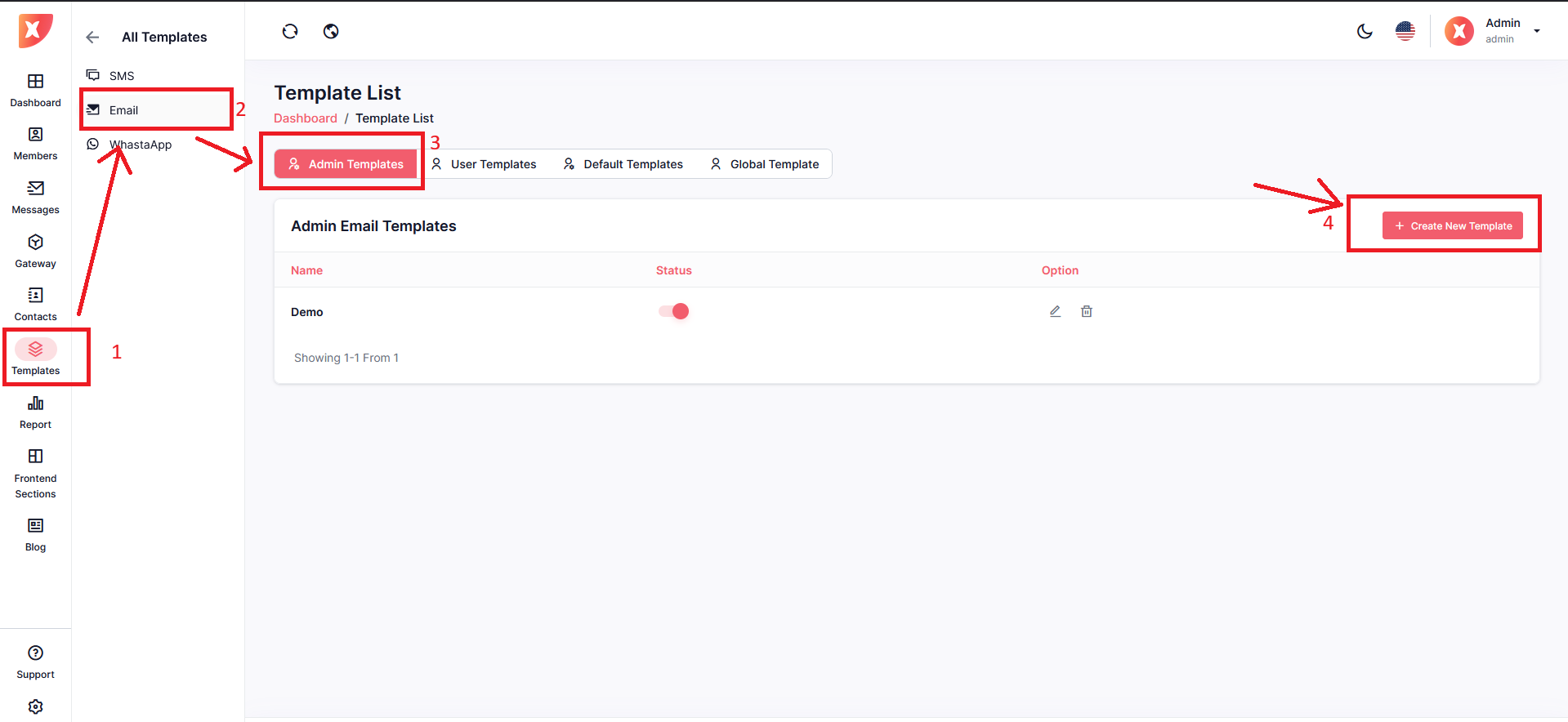
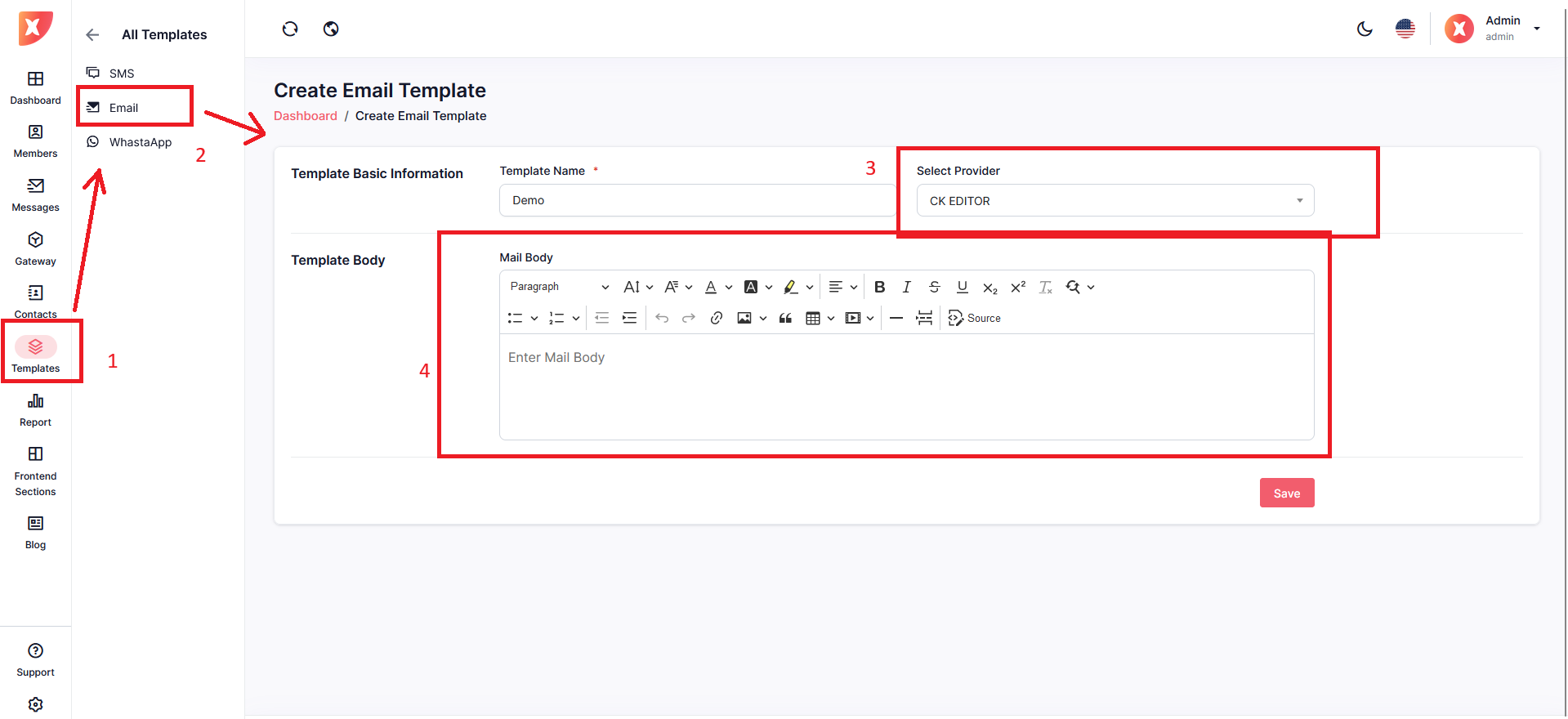
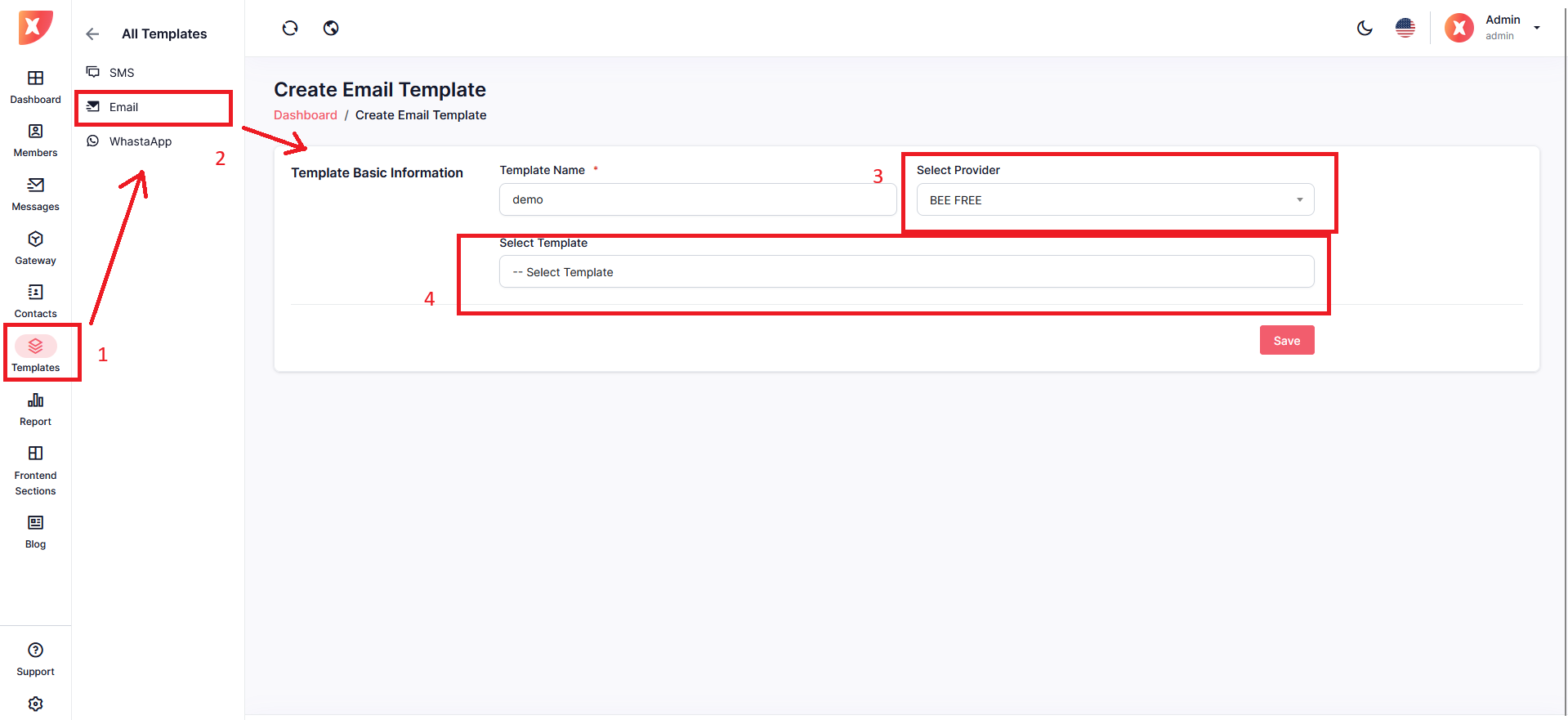
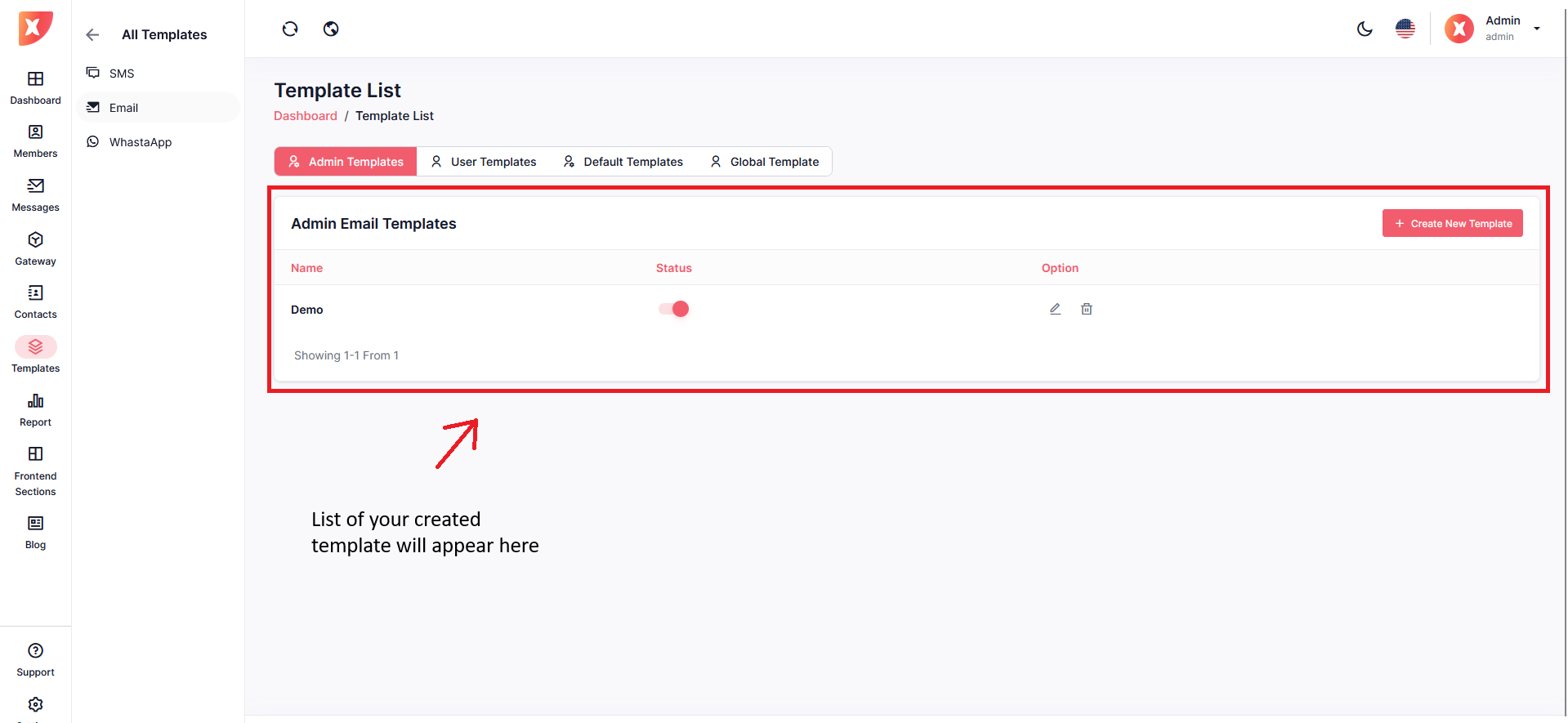
Navigate to Template > Email
Select Admin Templates

Click on Create New Template

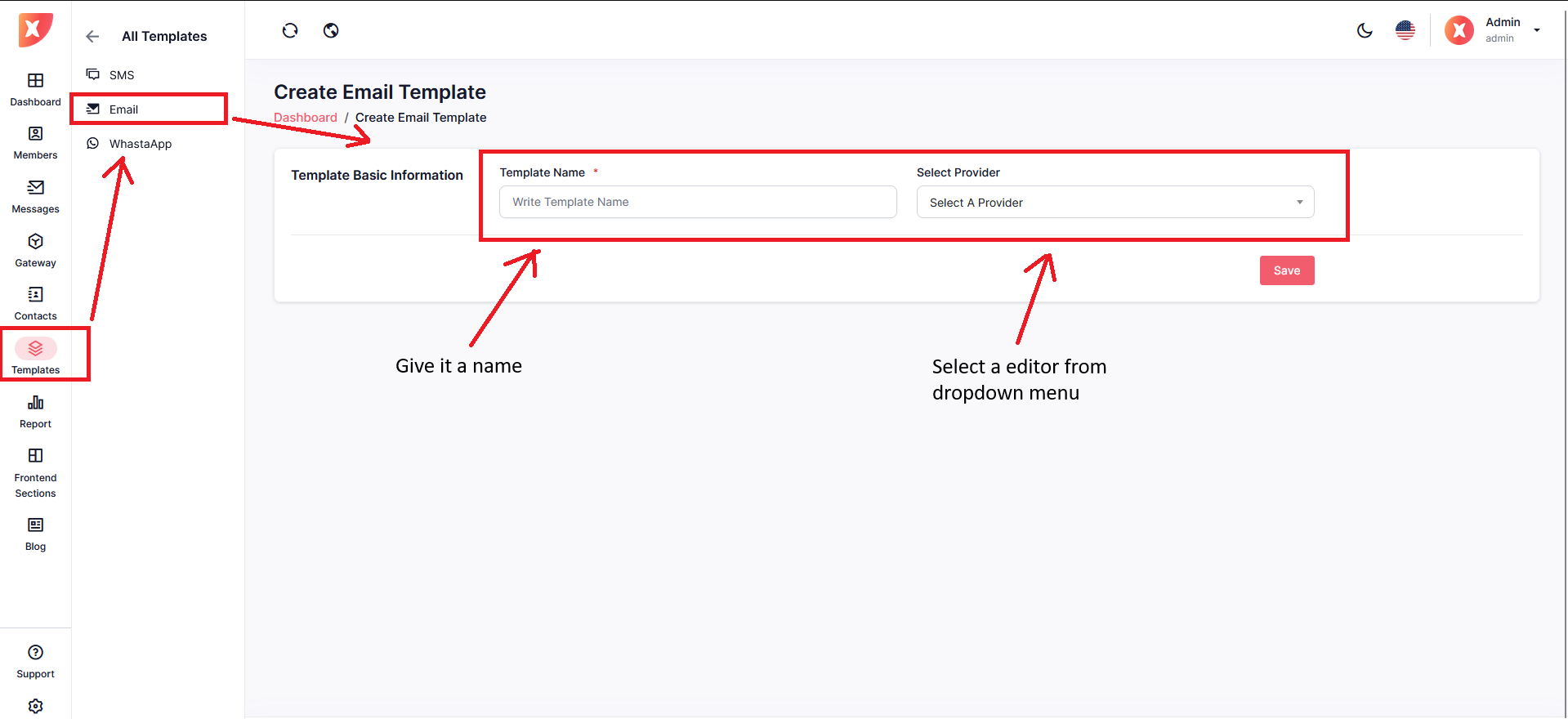
Set a name for your template and Select a provider from the dropdown menu
If you choose "CK Editor" it will look like this
Once done editing, save

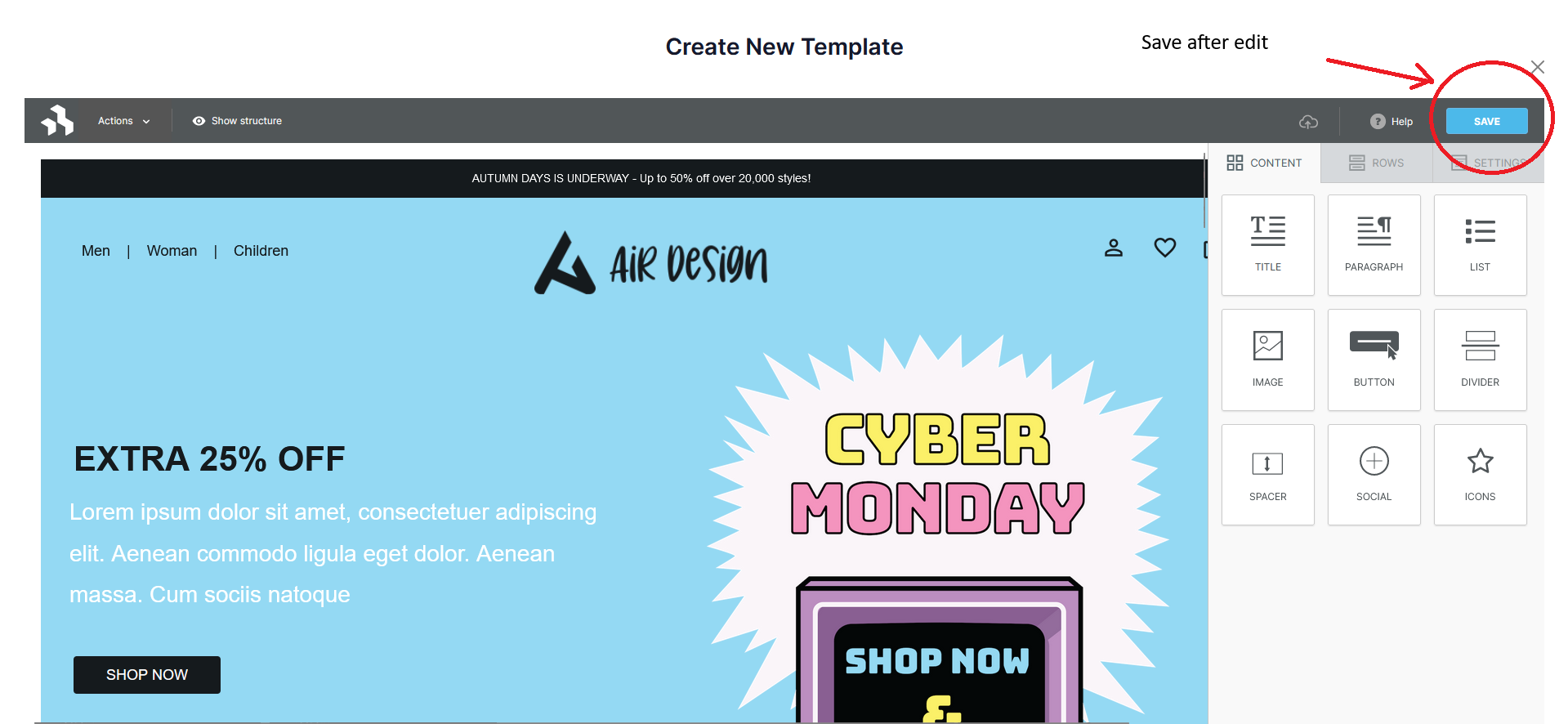
If you choose Bee Editor you will get another dropdown menu for selecting a template. once you select it will redirect you to the editor page where you can edit it according to your need

When you finish editing on the template editor page, save

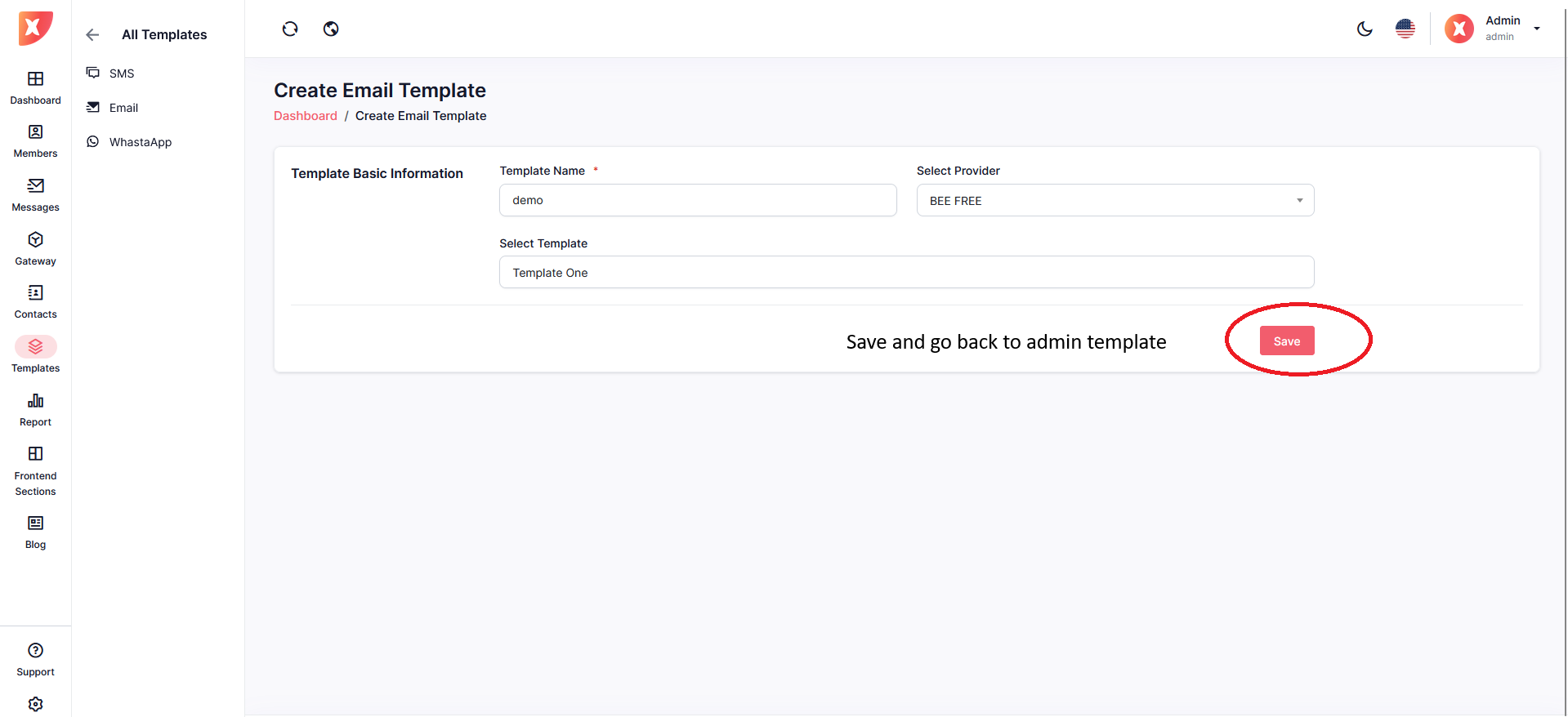
Lastly, save the template

Go back to your admin template page, your saved templates will appear here

Navigate to Template > Email
Go to the User Template tab
All templates created by Users will appear here, you can manage them from this tab.

To help you get started and facilitate the process, there are several predefined templates available. You can find these under the "Default Templates" section.
Go to the Default Templates tab
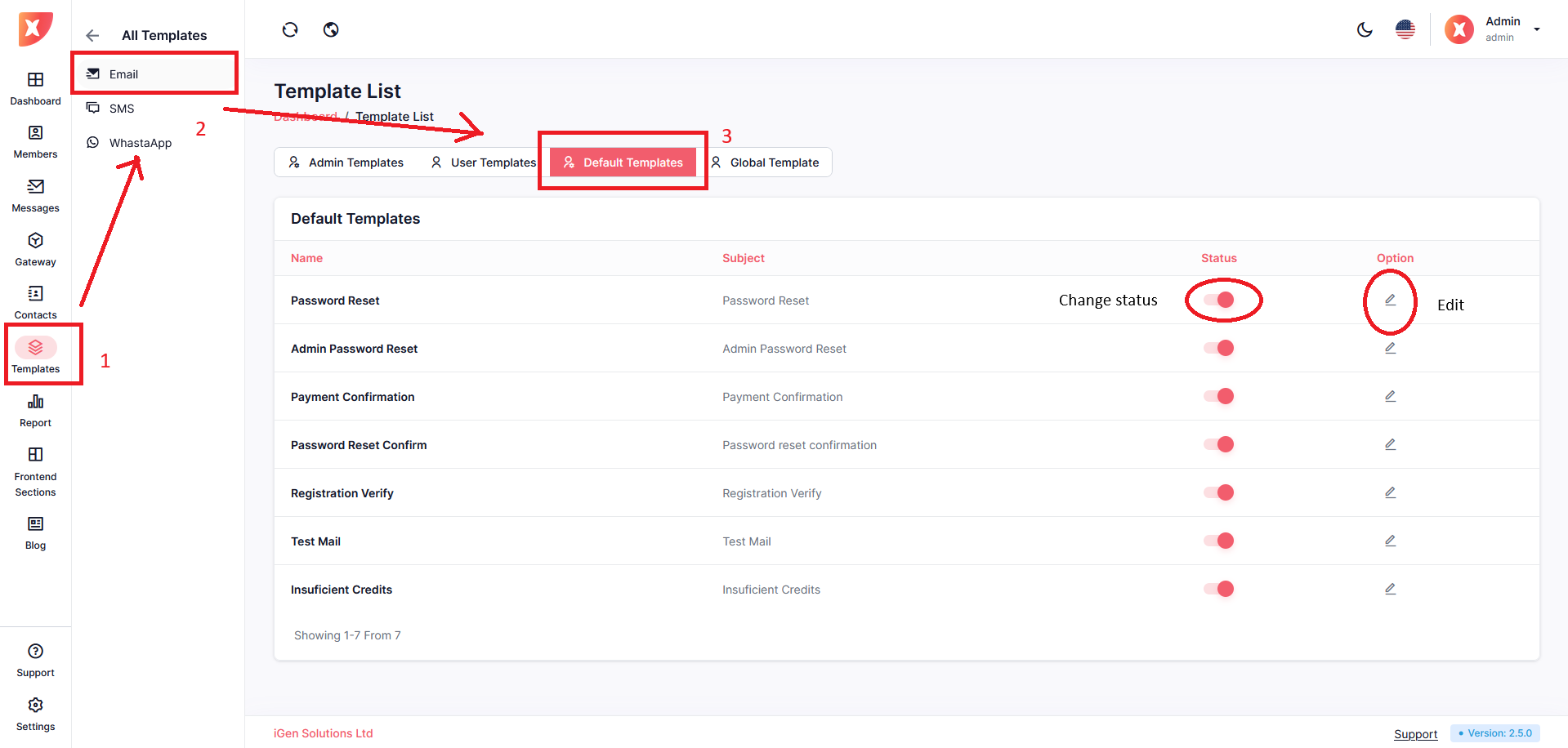
You can make these templates active/inactive by changing the status
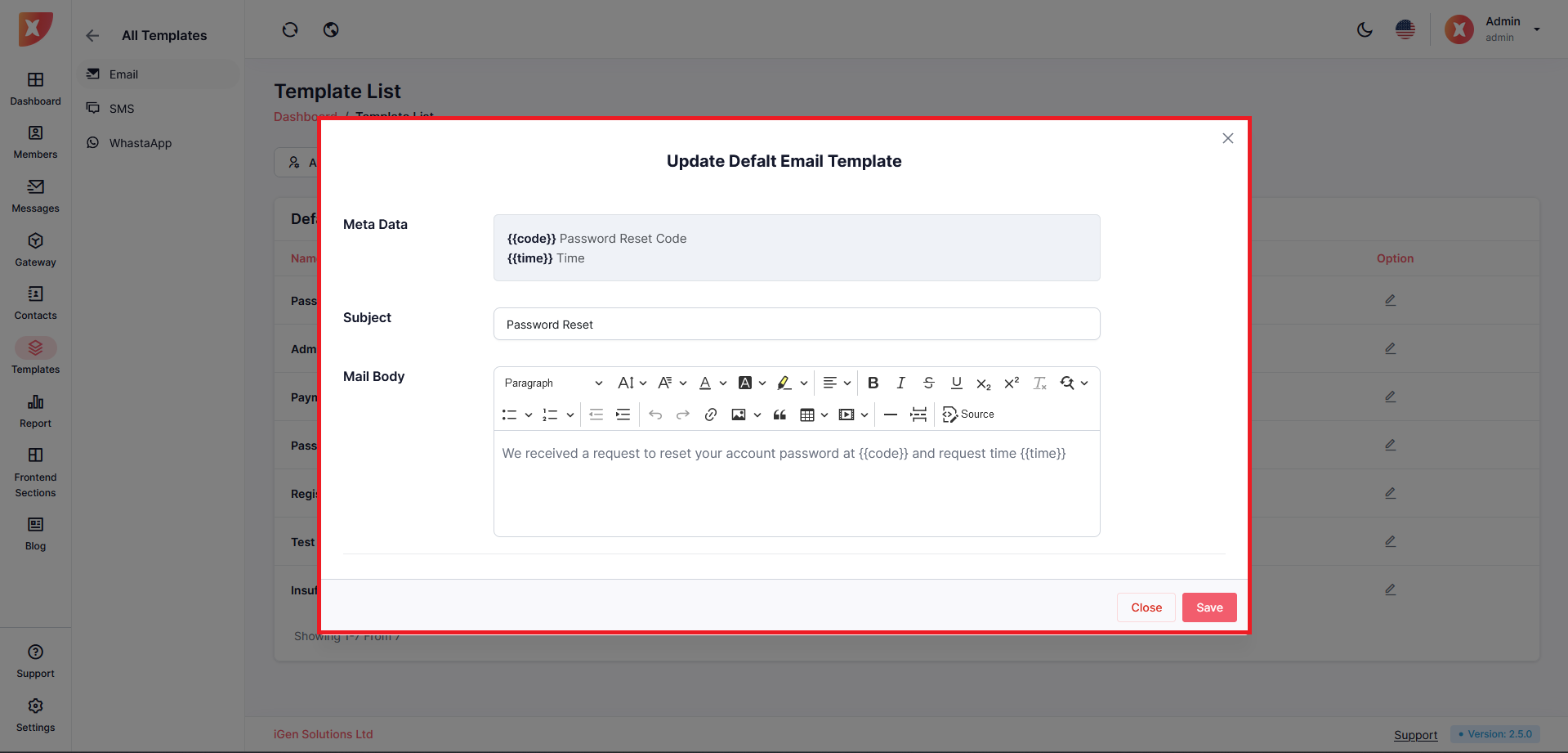
If you wish, you can also edit those according to your needs by clicking on the edit icon. A pop-up will appear
Once you are satisfied with your edit, save
If you wish to send a specific message in every mail sent from your app , you can use global template for it
Navigate to Template > Email
Go to Global Template tab
Edit the mail body to customize it with the specific message you wish to include in all your emails.
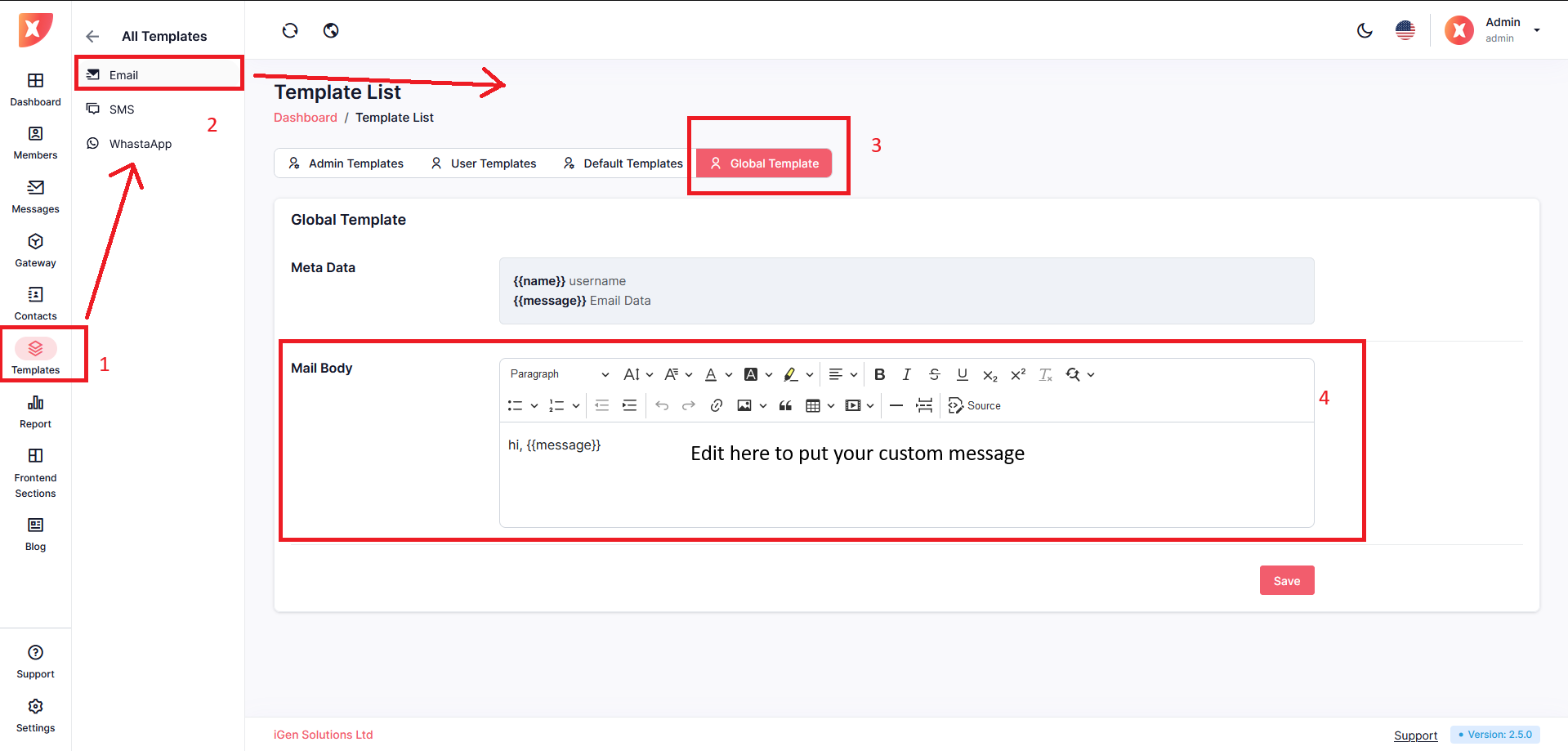
save

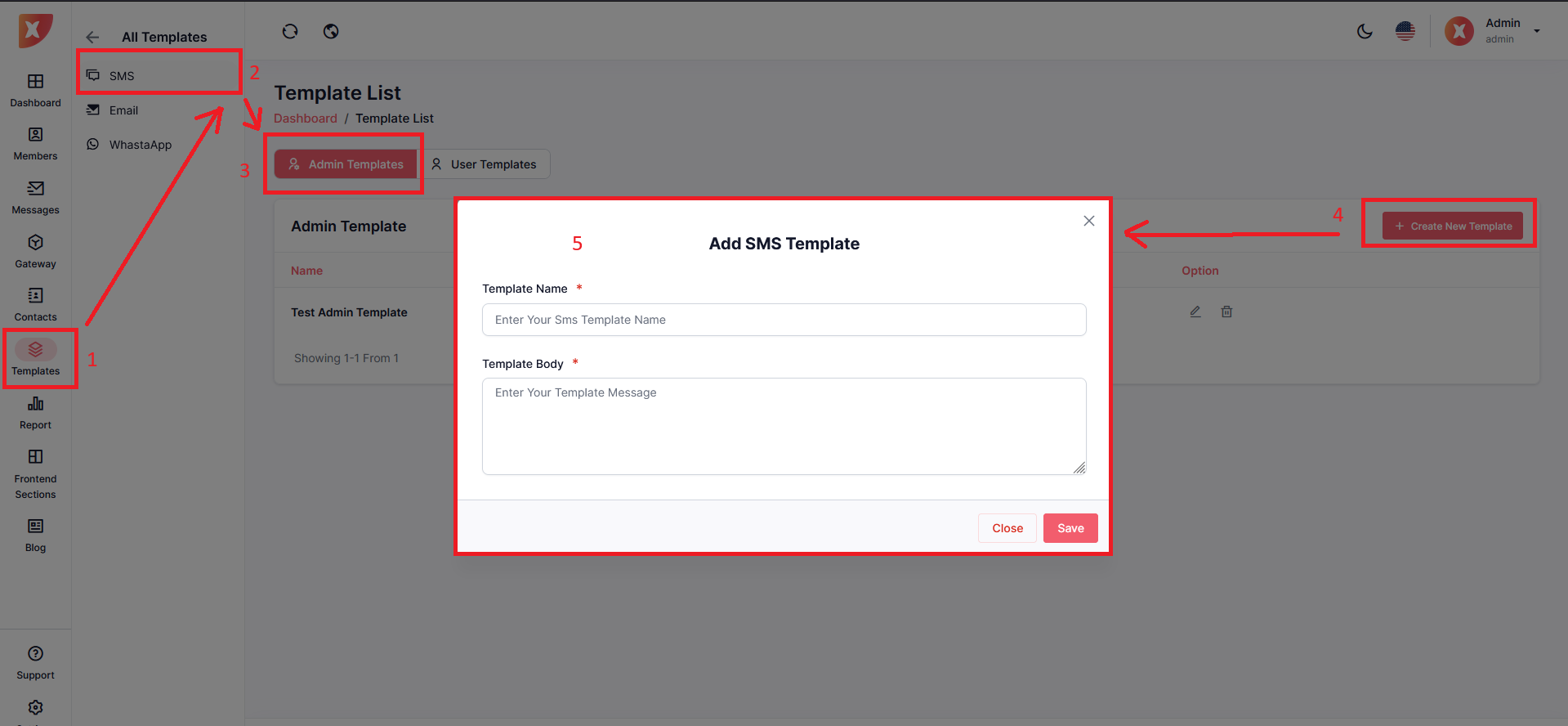
Navigate to Template > SMS
For the admin template select the Admin Template tab
Click on Create New Template and fill out the information
Save

To manage templates created by Users
Go to the User Template tab

you can see a list of templates created by the user here and also managed by performing edit and delete
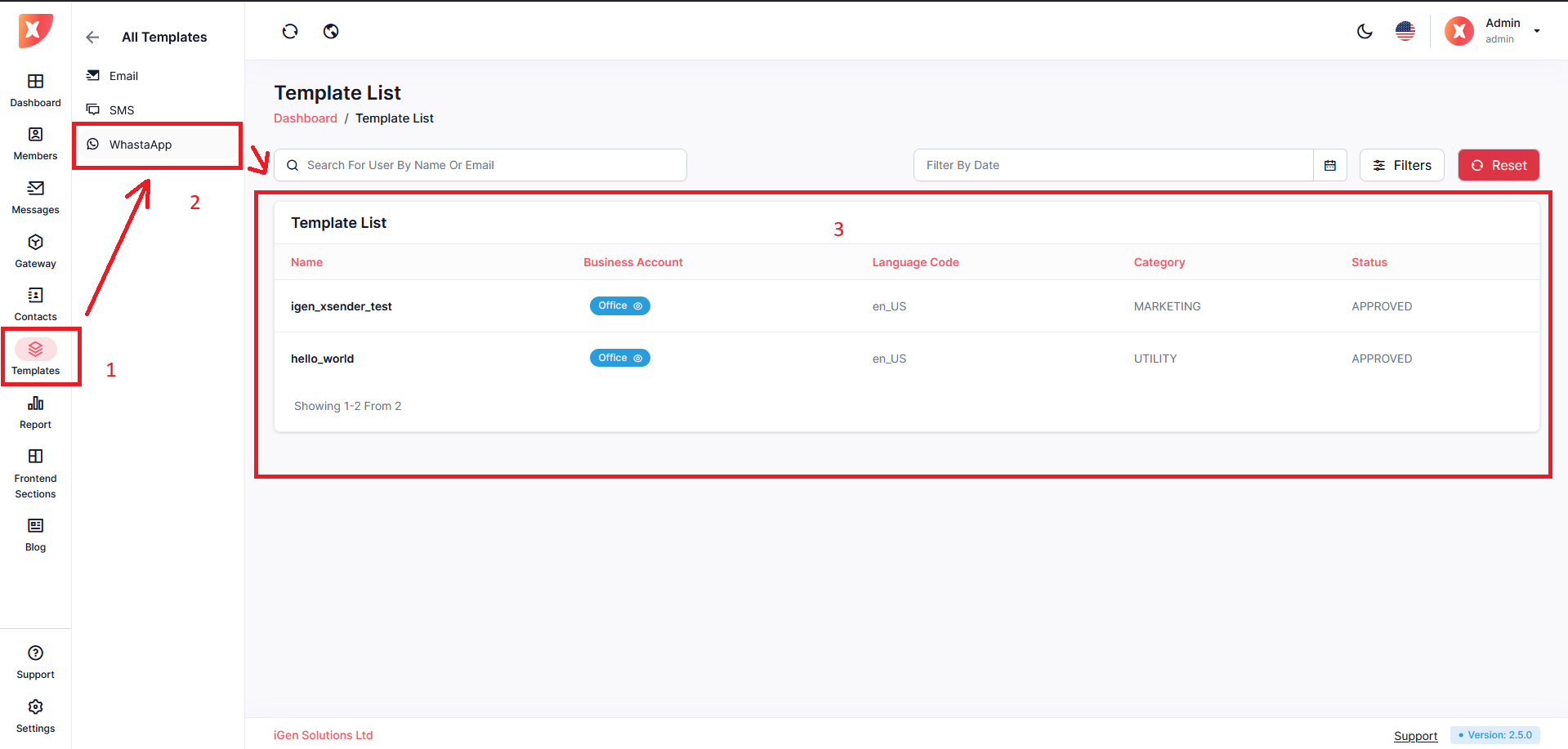
To view Whatsapp templates Navigate to Template > Whatsapp
You will see all Whatsapp templates synced from various business accounts here