To effectively manage your contacts, we recommend first creating a group and then assigning your contacts to the appropriate group. This approach ensures better organization and easier access.
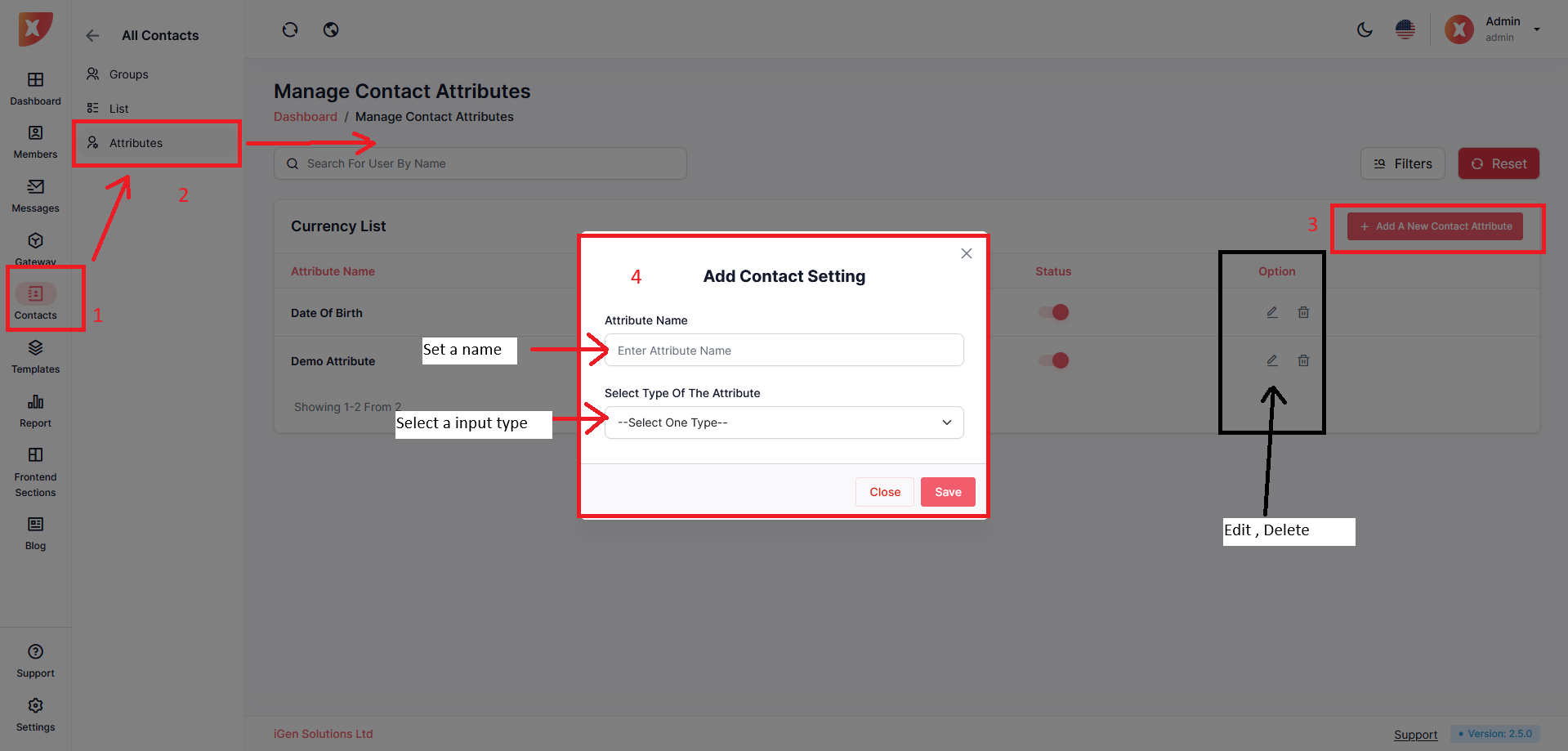
If you wish to add a custom attribute to your contact, you can create it from the "Attributes" section.
Navigate to Contact > Attribute
Set a name & Select the input type, then Save
You can also edit, delete, attribute from the Option column
Navigate to Contact > Group
Click on Add Group
A pop-up will appear, simply put a group name and save

Once you save it will appear on the list.
You can edit, or delete from the option column of each group.
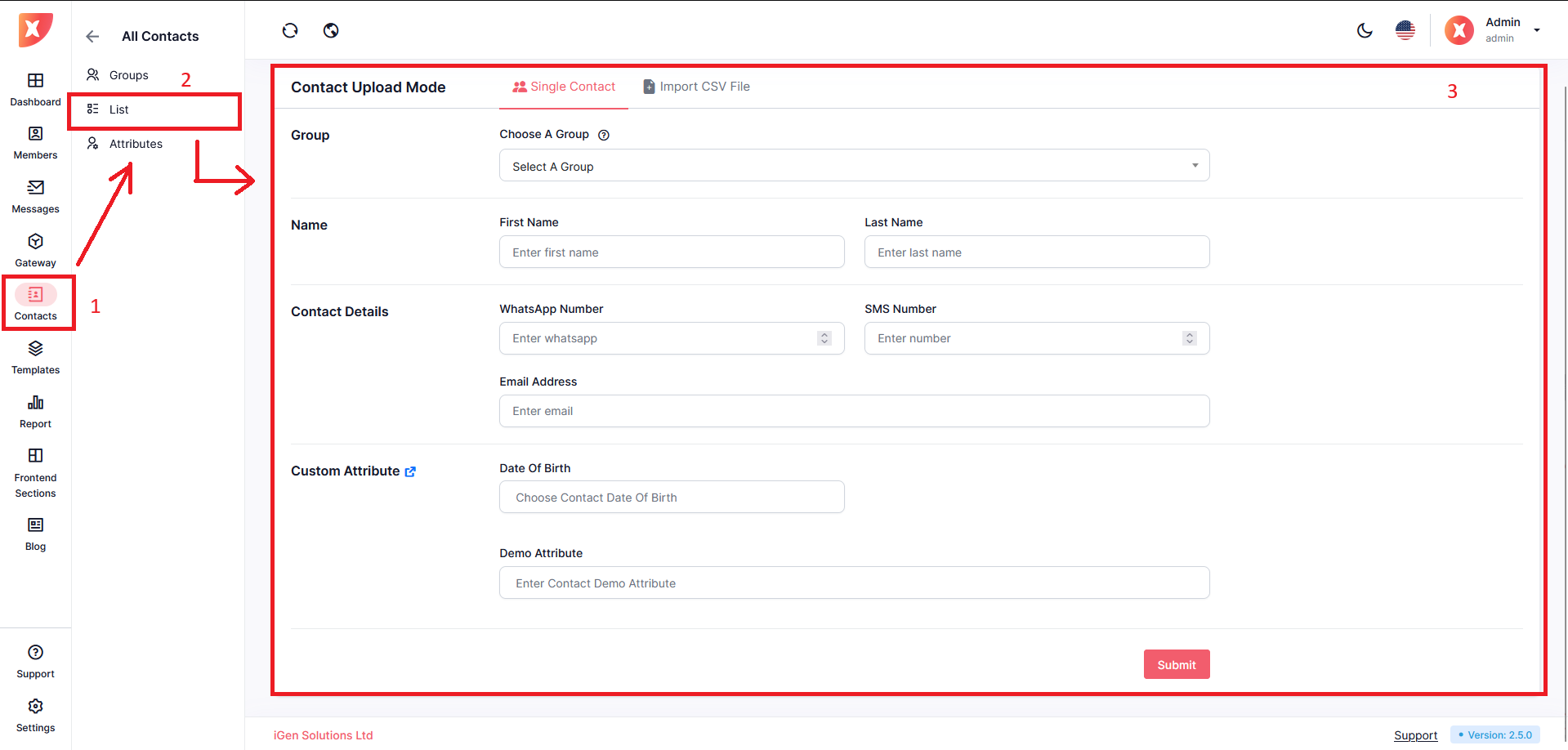
Navigate to Contact > List
Click on Create New Contact
On the next page, Under the Single Contact tab fill out all the information and submit
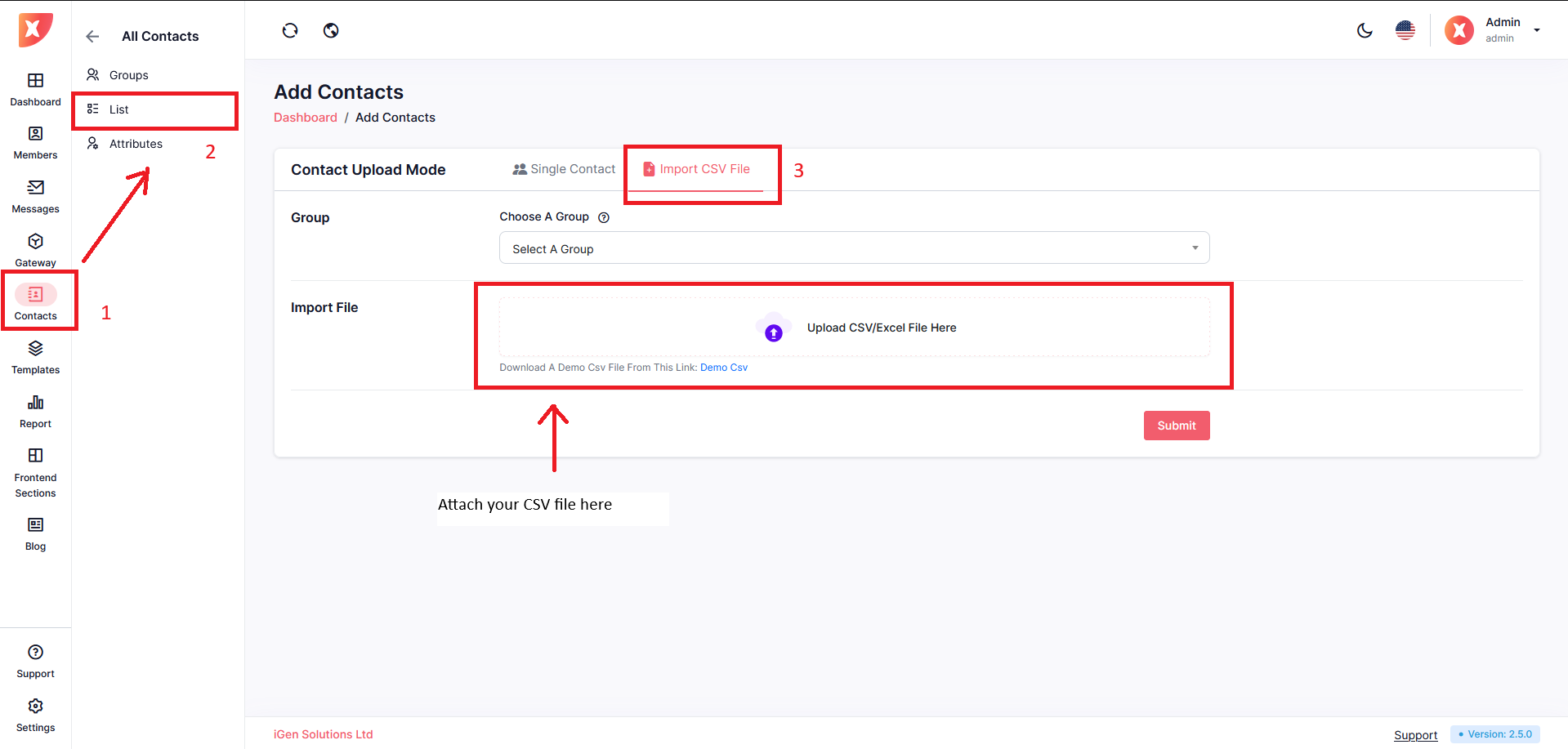
You can also import multiple contacts at once from a CSV file
To import a CSV file, Go to the Import CVS File tab
Assign a group
Attach your CSV file
Save the key map structure
Submit
After uploading a CSV file to a group, you can not upload another CSV file to that same group until the previous process is completed.
